Have you ever looked at a famous photographer’s Instagram feed and wondered, “How do their photos look so perfect?” The secret isn’t just an expensive camera. Most of the time, the secret is a Lightroom preset.
Editing photos from scratch can take hours. But with presets, you can get that moody, bright, or vintage look with just one click. If you just bought or downloaded some new filters and are wondering how to add presets to Lightroom, you are in the right place.
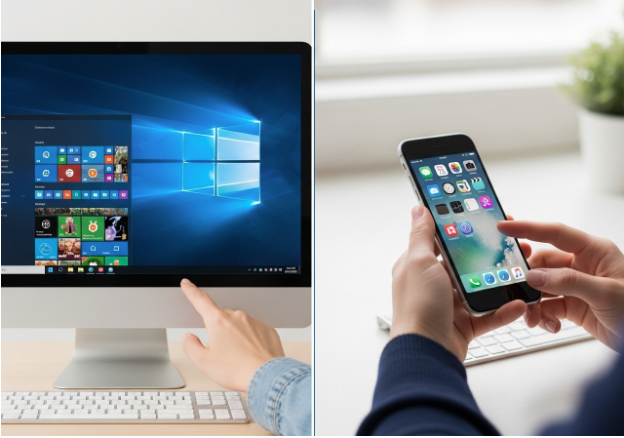
In this guide, we will walk you through exactly how to install Lightroom presets on every device. We have you covered whether you use Lightroom Classic on a Mac, Lightroom CC on Windows, or the standard mobile app on your phone. Even if you are using a Lightroom Mod Apk to unlock extra features on your Android device, or you downloaded the Lightroom Pro Mod Apk to get access to premium editing tools, these steps will work perfectly for you.
Let’s dive right in and make your photos look amazing!
What is a Lightroom preset?
Before we learn how to install presets, let’s talk about what they actually are.
Think of a preset as a “smart filter.” When you edit a photo in Adobe Lightroom, you change things like brightness, contrast, shadows, and colors. A preset simply saves all of those changes into one small file.
The next time you want to edit a photo, you don’t have to move all those sliders again. You just click the preset, and Lightroom applies all the saved settings to your new picture instantly. It saves you time and keeps all your photos looking matching and professional.
Knowing Your File Types
When you buy or download presets from creators like Peter McKinnon, Mastin Labs, or marketplaces like Envato Elements, they will come in a zip file. Once you unzip them, you will see one of three file types:
- .XMP Files: This is the newest file type for Lightroom Classic and Lightroom CC on your computer.
- .LRTEMPLATE Files: This is the older file type for older versions of Lightroom. If you have these, Lightroom will automatically change them to .XMP files when you add them.
- .DNG Files: These are raw image files that hold preset settings inside them. These are mostly used for the free Lightroom Mobile app.
Now that you know what you are looking for, let’s install them!
How to Add Presets to Lightroom Classic (Mac and Windows)
Lightroom Classic is the heavy-duty version of Lightroom that most professional photographers use on their computers. Adding presets here is very fast.
Step-by-Step Guide for Lightroom Classic:
- Download and Unzip: First, download your new presets to your computer. Double-click the ZIP folder to open it. Look for the folder that says “.XMP files.”
- Open Lightroom Classic: Open the program on your Mac or Windows computer.
- Go to the Develop Module: Look at the top right corner of your screen and click on the word Develop.
- Find the Presets Panel: Look at the left side of your screen. You will see a panel called Presets.
- Click the Plus (+) Icon: Right next to the word “Presets,” there is a tiny + sign. Click it.
- Click Import Presets: A small menu will drop down. Choose Import Presets…
- Find Your Files: A window will pop up. Find the unzipped folder on your computer. Select all of them. XMP files you want to add. (You can hold the ‘Shift’ key to select many at once).
- Click Import: Click the Import button at the bottom of the window.
That’s it! You will now see your new presets in the Presets panel on the left side. Just click on a photo, click your new preset, and watch the magic happen.
How to Add Presets to Lightroom CC (Cloud-Based Desktop)
Lightroom CC (often just called “Adobe Lightroom”) is the cloud-based version. It has a cleaner look than Classic and automatically shares your photos to your phone.
Here is how to import presets into the cloud version:
- Open Lightroom CC: Open the app on your computer.
- Open the Edit Panel: Click on any photo to open it. Then, click the Edit icon in the top right corner (it looks like three little lines with sliders).
- Open the Presets Panel: At the very bottom of the Edit panel, click the button that says Presets.
- Click the Three Dots (…): Look at the top right corner of the Presets menu. You will see three little dots. Click them.
- Choose Import Presets: Click on Import Presets from the drop-down menu.
- Select Your Files: Find your downloaded ZIP file or your unzipped file. XMP files.
- Click Import: Click Import, and Lightroom will do the rest.
The Best Part? If you pay for an Adobe subscription, any preset you add to Lightroom CC on your computer will automatically sync to your Lightroom Mobile app on your phone. You don’t have to install them twice!
How to Add Presets to Lightroom Mobile (Without a Computer)
What if you don’t have a computer? What if you only use the free Lightroom app on your iPhone (iOS) or Android phone?
You can still use presets! But the process is a little bit different. Instead of using. XMP files, you will use. DNG files.
Step 1: Download and Unzip the Files on Your Phone
When you buy mobile presets, you will get a ZIP file.
- On iPhone: Save the ZIP file to your “Files” app. Tap the ZIP file, and your iPhone will automatically unzip it into a regular folder. Inside, you will see images (these are the .DNG files).
- On Android: Save the ZIP file to your “My Files” or “Files by Google” app. Tap it and choose “Extract” to see the. DNG images inside.
Step 2: Import the DNG Files into Lightroom Mobile
- Open Lightroom Mobile: Open the app on your phone.
- Create a New Album: Tap the “+” icon next to “Albums” and create a new album. Name it something like “My New Presets.”
- Add Photos: Open your new album. Tap the blue “Add Photos” button at the bottom right.
- Find the DNG Files: Choose “From Files” or “From Device” and find the folder where you unzipped your presets.
- Select and Add: Select all the .DNG files and tap Open or Add. They will look like regular photos in your album. Sometimes they look blank or have the name of the preset written on them.
Step 3: Create the Presets
Now you have the files in your app, but you have to save the settings as a permanent preset.
- Tap a DNG Photo: Open the first DNG photo in your new album.
- Tap the Three Dots: Look at the top right corner of your screen and tap the three little dots icon.
- Choose Create Preset: A menu will pop up. Tap Create Preset.
- Name It: Type in the name of the preset.
- Pick a Group: Under “Preset Group,” tap “User Presets” and choose Create New Preset Group. Name it after the person you bought it from (like “VSCO Filters” or “Summer Vibes”).
- Save It: Tap the checkmark at the top right.
You have to repeat Step 3 for every DNG file you imported. It takes a few minutes, but you only have to do it once! After that, you can open any picture of yourself, go to the Presets tab at the bottom, and apply your new look.
How to Organize Your Lightroom Presets
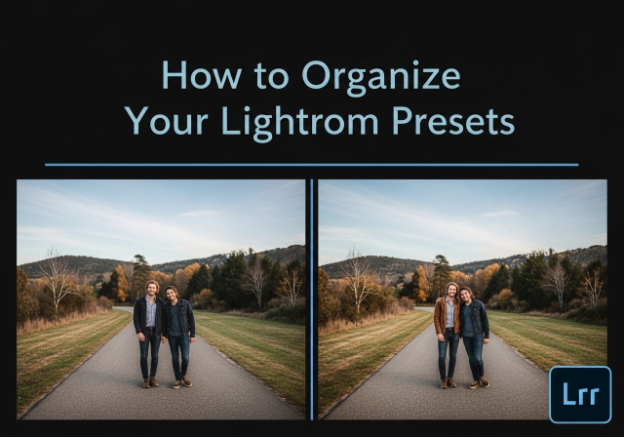
Once you learn how to add presets to Lightroom, it is very easy to get addicted. Before you know it, you might have hundreds of them! If you don’t organize them, finding the right one can become a headache.
Here are a few simple tips to keep your preset library neat:
1. Use Folders and Groups
Do not put all your presets in the “User Presets” folder. Make specific folders for different styles. For example:
- Wedding Presets
- Food Photography
- Dark and Moody
- Bright and Airy
To move a preset into a folder in Lightroom Classic, just right-click the preset, choose Move, and pick the folder you want.
2. Hide Presets You Don’t Use
Lightroom comes with built-in presets that you might never use. You can hide them so they don’t clutter your screen.
- In Lightroom Classic, click the + icon in the Presets panel and click Manage Presets. Uncheck the boxes next to the groups you want to hide.
3. Star Your Favorites
If you have a few presets that you use on almost every photo, make them a favorite! Right-click your favorite preset and click Add to Favorites. Lightroom will put a star next to it and keep it right at the top of your list so you can always find it fast.
Troubleshooting: Why Won’t My Presets Work?
Sometimes, things don’t go perfectly. If you are having trouble, don’t worry. Here are the most common problems and how to fix them.
Problem 1: My Presets are Grayed Out
If your presets are showing up in the menu, but they are gray, and you can’t click them, it means the preset doesn’t match your photo.
- The Fix: Many presets are built specifically for RAW image files. If you are trying to edit a standard JPEG photo, Lightroom might block the RAW preset. Try applying the preset to a RAW file instead.
Problem 2: I Clicked Import, but Nothing Happened
You clicked the zip file, but Lightroom didn’t add anything.
- The Fix: You might be trying to import the wrong file type. Make sure you are using .XMP files for the desktop version of Lightroom. If your files are .DNG, you must import them as regular photos first (like we did in the Mobile steps).
Problem 3: My Presets Didn’t Sync to My Phone
You added presets to Lightroom CC on your computer, but they aren’t on your mobile app.
- The Fix: First, make sure you are logged into the exact same Adobe account on both devices. Second, check your internet connection. Finally, look for the cloud icon at the top right of Lightroom CC and make sure it says “Synced and Backed Up.”
Where to Find the Best Lightroom Presets
If you are just starting out, you might be looking for new styles to add to your collection. There are thousands of places to get them online. Here are a few great places to look:
- Envato Elements: If you want a lot of options, Envato is great. You pay one monthly fee and can download thousands of different preset packs.
- Famous YouTubers: Many popular photography YouTubers, like Peter McKinnon or Jared Polin, sell their own personal presets. Buying from them is a great way to support creators you like.
- Mastin Labs: If you want your digital photos to look exactly like old-school film, Mastin Labs is famous for making very accurate film-style presets.
- Etsy: Believe it or not, Etsy is a huge marketplace for very cheap mobile and desktop presets. Just search “Lightroom presets,” and you will find thousands of options for just a few dollars.
Frequently Asked Questions (FAQs)
- Are Lightroom presets free? Yes! You can find many free presets online to test out, though famous photographers usually charge money for their premium preset packs.
- Do I have to pay for Lightroom to use presets? No. The Lightroom Mobile app is completely free. You only need a paid Adobe subscription if you use Lightroom on a computer.
- Do presets work on iPhone and Android? Yes! Mobile presets (which use .DNG files) work perfectly on both iPhone and Android devices using the free app.
- Why does my photo look too dark with a preset? Presets aren’t magic. Because every picture has different lighting, you will usually need to adjust the brightness slider a little bit after you apply the preset.
- Can I make my own presets? Yes! Once you edit a photo and love the colors, just open the menu and tap “Create Preset” to save it as your own custom filter.
Conclusion: Start Editing Like a Pro
Learning how to add presets to Lightroom might seem a little tricky the first time you try it. But once you follow these steps, it will become second nature.
Whether you are using. XMP files on your desktop computer or adding. DNG files to your free mobile app, and presets will save you hours of editing time. They are the ultimate secret weapon to making your photos look professional, matching, and beautiful with just one simple click.
Remember, a preset is just a starting point. Don’t be afraid to play around with the sliders after you apply one to make the photo completely your own. So go ahead, download some fun new styles, and start bringing your pictures to life. Happy editing!